Get started with Launchpad
Launchpad is a desktop application for running Aignostics applications on your whole slide images. This guide walks you through running Atlas H&E-TME — which analyzes the tumor microenvironment in H&E-stained tissue — on an example slide, from signing up to viewing results in QuPath.
You do not need any programming experience. You will copy and paste a few commands, but everything else happens in a normal point-and-click window. The hands-on setup takes about 15 minutes. After you submit your analysis, it runs on its own — you can close Launchpad and come back to your results later.
What you need: a Mac, Windows (Windows 10 or later), or Linux (Ubuntu) computer with at least 8 GB of memory and 1 GB of free disk space, a web browser, and a mobile phone for the login security step.
Sign up for the Aignostics Platform
Before you can run an analysis, you need an account on the Aignostics Platform. These account steps are the same whichever interface you use.
💡 Already have an account? Skip to the installation steps below.
Find your invitation email. Look in your inbox for a message from
support@aignostics.com, with a subject like “You’ve been invited to join your organization’s Aignostics account”. If you can’t find it, check your spam folder. If it isn’t there either, ask your organization’s administrator or emailsupport@aignostics.com.Accept the invitation. Open the email and click Accept Invitation. A page opens in your browser where you enter your full name and set a password.
Set up two-factor authentication. Next, you are asked to set up two-factor authentication. This is a second login step that uses a code from your phone. Install one of these free authenticator apps, then scan the code shown in your browser and enter the six-digit code it gives you:
Android: Google Authenticator
iPhone: Google Authenticator
You are done when you see “Welcome to the Console of the Aignostics Platform”. From now on, each time you log in you enter your password and then a fresh six-digit code from the app.
Install Launchpad
You install Launchpad by pasting one command into a terminal. The terminal is a text window for typing commands. You only need it to start Launchpad — everything after that is point-and-click.
Pick the instructions for your computer below. If a command does not work, see Troubleshooting.
On macOS or Linux
Open the Terminal app. On macOS, press Cmd + Space to open Spotlight, type Terminal, and press Enter.
Paste this command and press Enter:
curl -LsSf https://astral.sh/uv/install.sh | sh
When it finishes, close the Terminal window and open a new one.
On Windows
Open PowerShell. Click the Start menu, type PowerShell, and press Enter.
Paste this command and press Enter:
powershell -ExecutionPolicy ByPass -c "irm https://astral.sh/uv/install.ps1 | iex"
When it finishes, close the PowerShell window and open a new one.
Start Launchpad
In your fresh terminal window, paste this command and press Enter:
uvx aignostics launchpad
The first time you run this, it takes a minute or two to get ready. Then the Launchpad window opens — that means everything installed correctly.
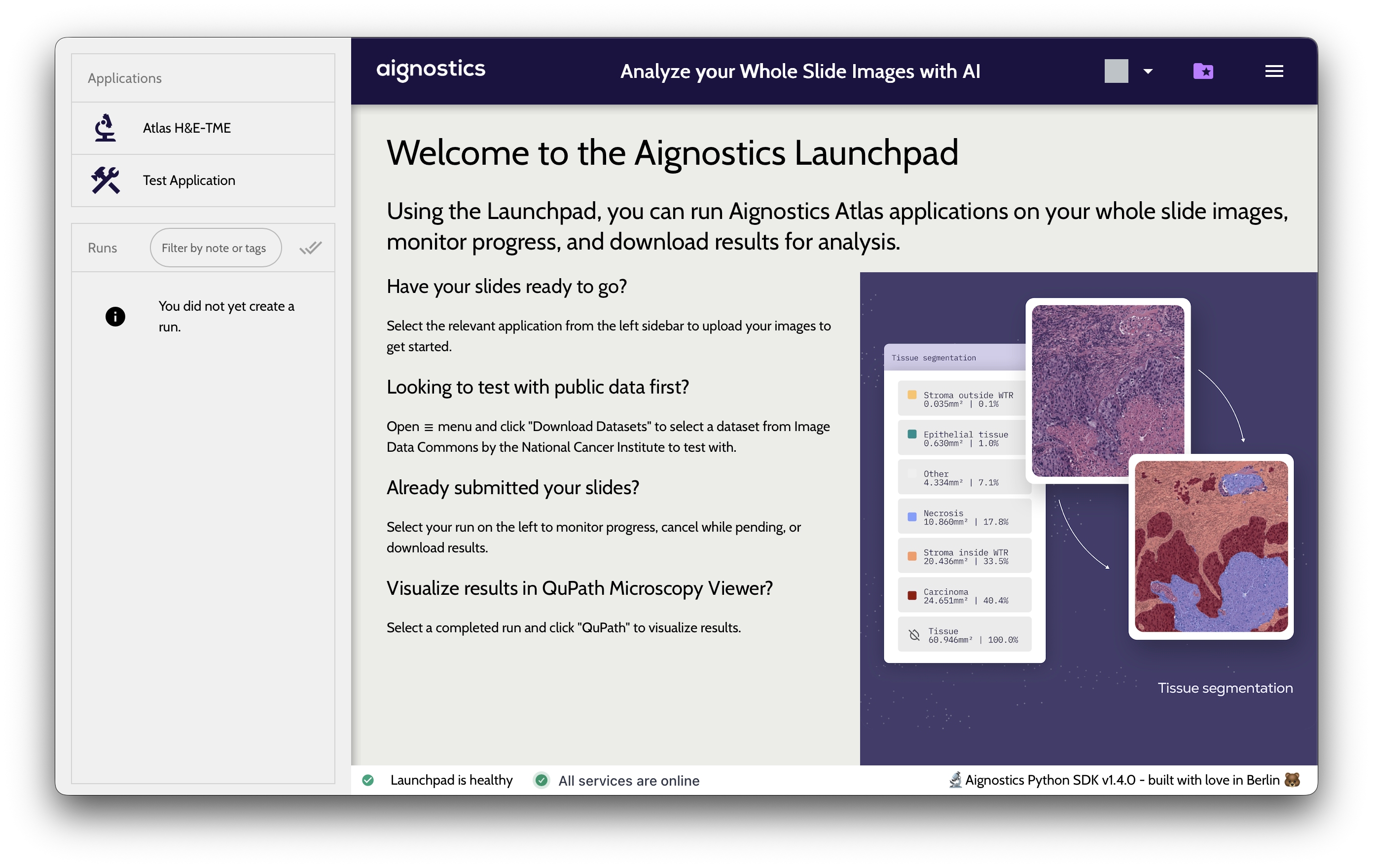
If you see an error instead of the window, see Troubleshooting.
Run your first analysis
This walkthrough runs Atlas H&E-TME on a public lung cancer slide so you can see the whole flow end to end. Launchpad should already be open from the previous step. If you closed it, start it again by pasting uvx aignostics launchpad into a terminal.
1. Log in
The first time you open Launchpad, it opens a browser window at platform.aignostics.com and asks you to log in. Enter your email and password, then the six-digit code from your authenticator app. When the browser confirms you are logged in, return to the Launchpad window. You stay logged in for future sessions.
2. Download the example dataset
You need a slide to analyze. Launchpad can download a public example slide for you — a TCGA lung adenocarcinoma case from the public cancer imaging archives.
Click the menu icon (☰) in the top-right corner.
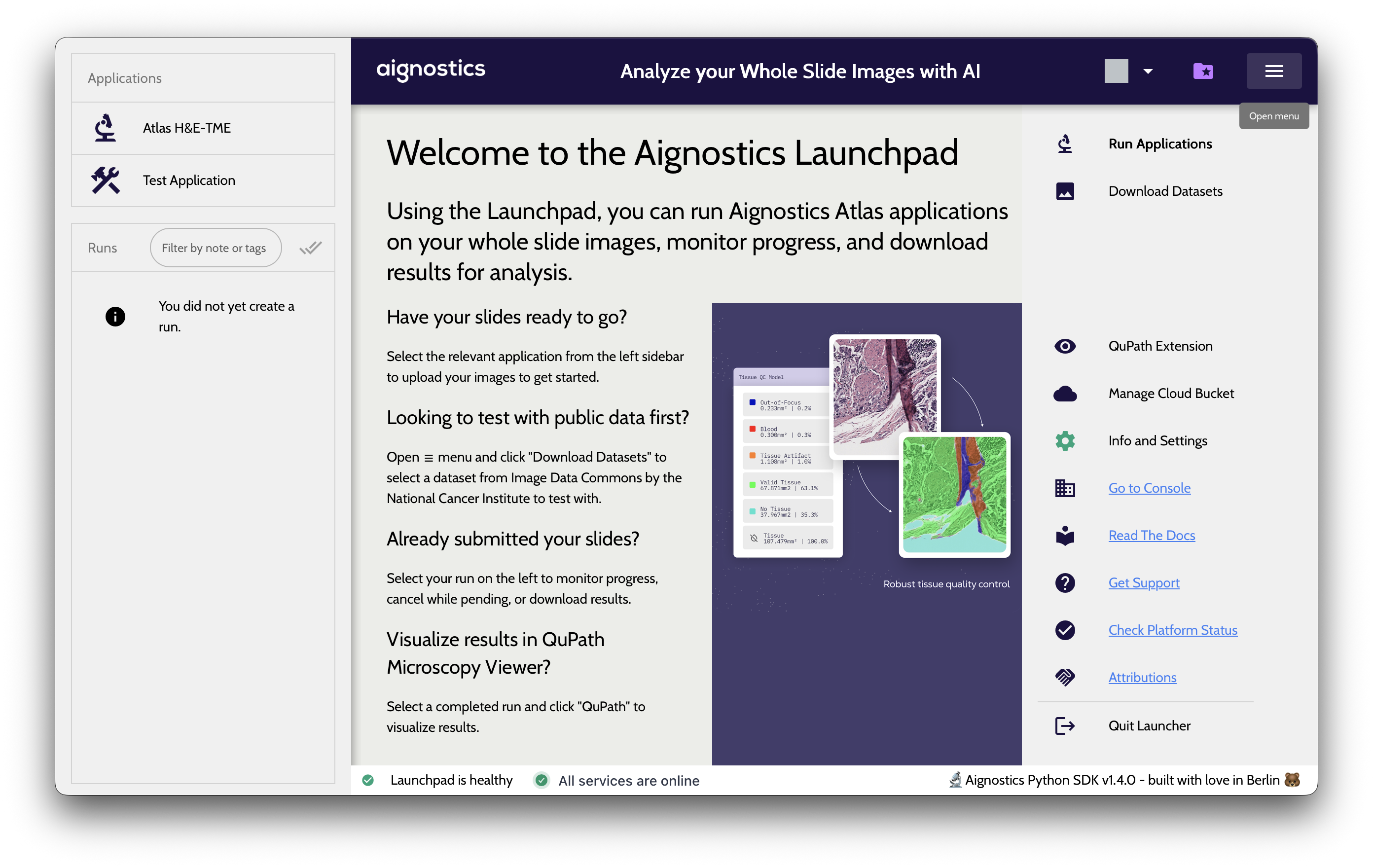
Click Download Datasets.
Click EXAMPLE DATASET. Launchpad fills in the details of the example slide for you.
Click DOWNLOAD. A progress bar appears at the bottom of the window. The download takes a few minutes. Wait until it finishes.
3. Open Run Applications and select Atlas H&E-TME
Click the menu icon (☰) again and choose Run Applications.
In the list on the left, click Atlas H&E-TME. The analysis workflow opens on the right.
Click NEXT to continue with the latest version.
4. Select slides and provide metadata
This is the step where most people get stuck, so take it slowly. Atlas H&E-TME needs to know two things about each slide before it can run: what kind of tissue it is, and what disease it relates to. You fill these in by hand.
Click DATA and select the folder you just downloaded. Launchpad scans the folder and shows a table with one row per slide. Each row has a small preview image and some details that were read automatically from the file.
Look at the Tissue and Disease columns. Some cells are red. Red means a value is missing and you need to provide it. Launchpad will not let you continue while any red cells remain.
Double-click the red cell in the Tissue column. A dropdown list of tissue types appears. Choose LUNG. The cell turns green, which means the value is accepted.
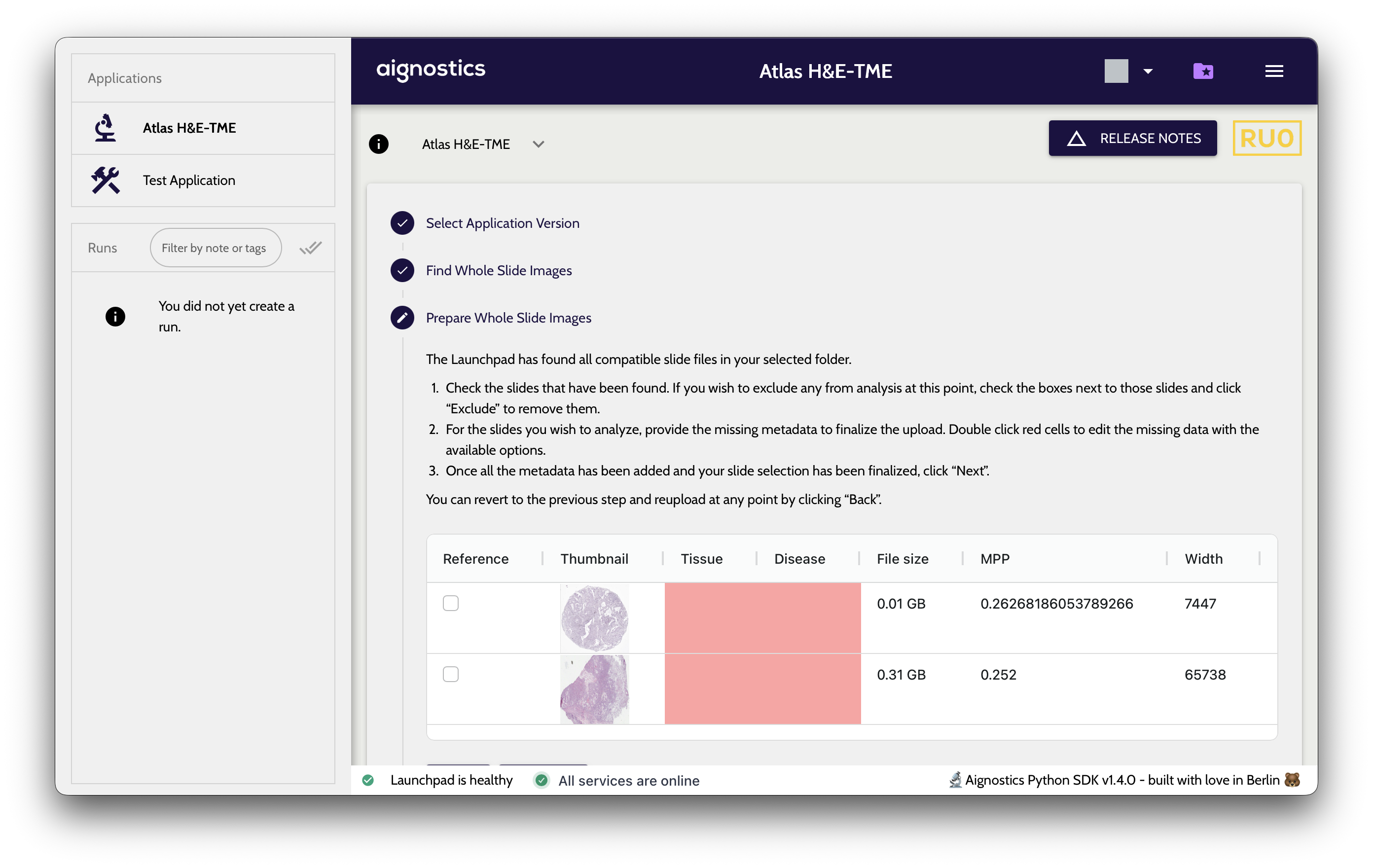
Double-click the red cell in the Disease column. From the dropdown, choose LUNG_CANCER. That cell turns green too.
Make sure every red cell in the table is now green. Then click NEXT.
5. Submit the analysis
After the slide table, Launchpad shows a few optional screens — one for notes and tags, one for scheduling. You don’t need any of them for your first run. Click NEXT through the optional screens until you reach the submission screen.
The submission screen shows how many slides will be analyzed and where they are. Click UPLOAD AND SUBMIT. A progress bar shows your slide uploading to the Aignostics Platform. When the upload finishes, your run appears in the list on the left with a running icon (🏃).
6. Wait for results
The analysis now runs on Aignostics servers, not on your computer, so you can do other things while you wait. How long it takes depends on the size and number of slides — anywhere from a few minutes to several hours. Click your run in the list on the left to see its status. The icon updates on its own as the slide is processed.
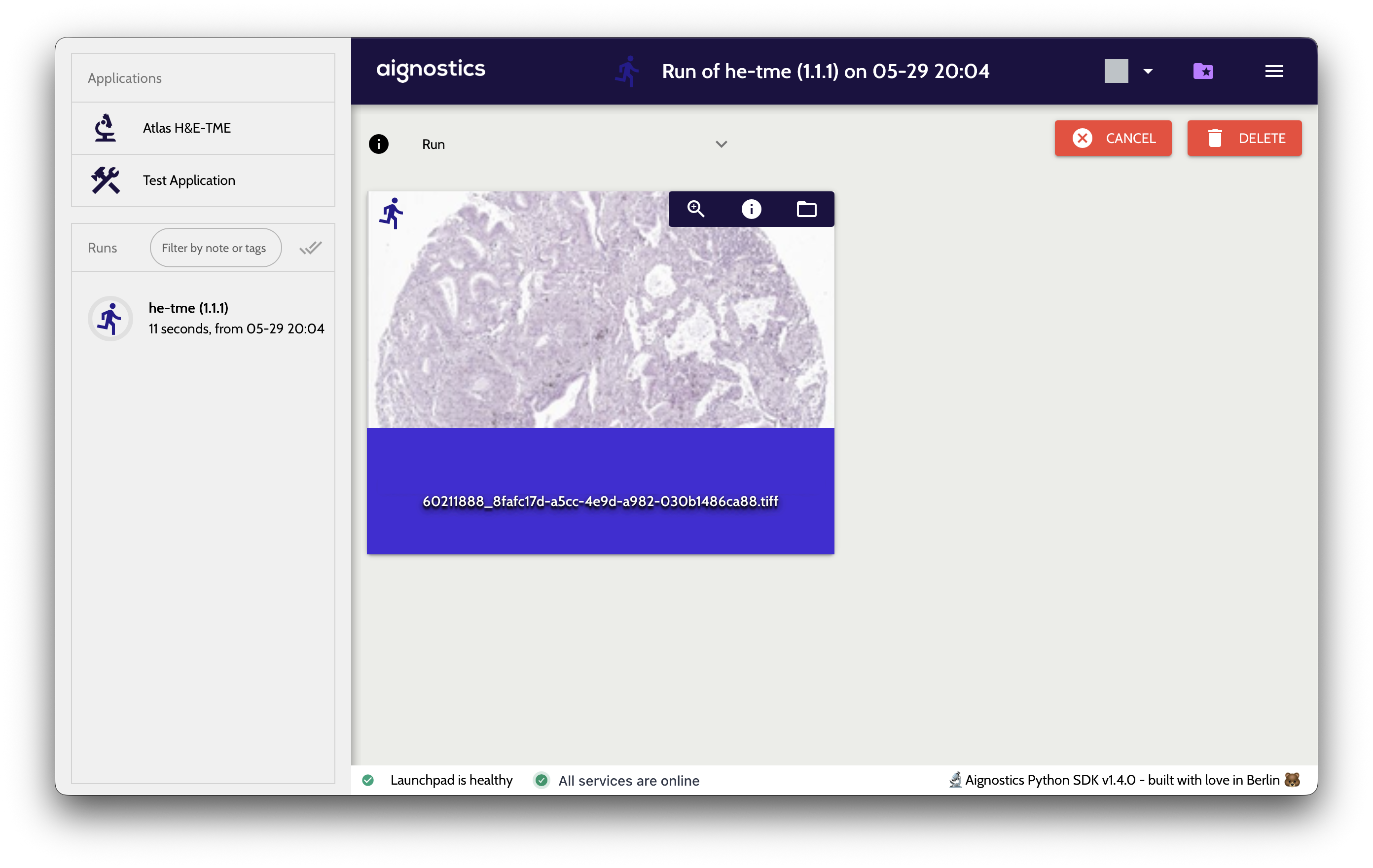
You don’t have to keep Launchpad open. Because the analysis runs on our servers, you can quit Launchpad and reopen it later — your run is still in the list on the left, with its latest status.
7. Download your results
When the run finishes, the icon next to it changes to show it is complete. Click your run, then click Download. Choose Download all results. Launchpad saves a ZIP file to your computer with the analysis outputs: the tissue regions it found (such as tumor, stroma, and necrosis), the individual cells it detected and classified by type, and a spreadsheet of measurements like cell counts and densities.
For a much better way to look at these results, read on.
View results in QuPath
QuPath is a free, widely used viewer for whole slide images. Launchpad can open your results directly in QuPath, with the tissue and cell annotations already loaded on top of your slide. This is the best way for a pathologist to explore what the analysis found.
The first time only, install the QuPath viewer. Open the ☰ menu and choose QuPath Extension, then follow the prompts. Launchpad downloads and sets up QuPath for you, which takes a few minutes. You only do this once.
Click your finished run in the list on the left.
Click QuPath. Launchpad builds a QuPath project from your slide and results and opens QuPath.
Your slide appears in QuPath with the analysis annotations layered on top — tissue regions and individual cells, colored by type — ready to explore.
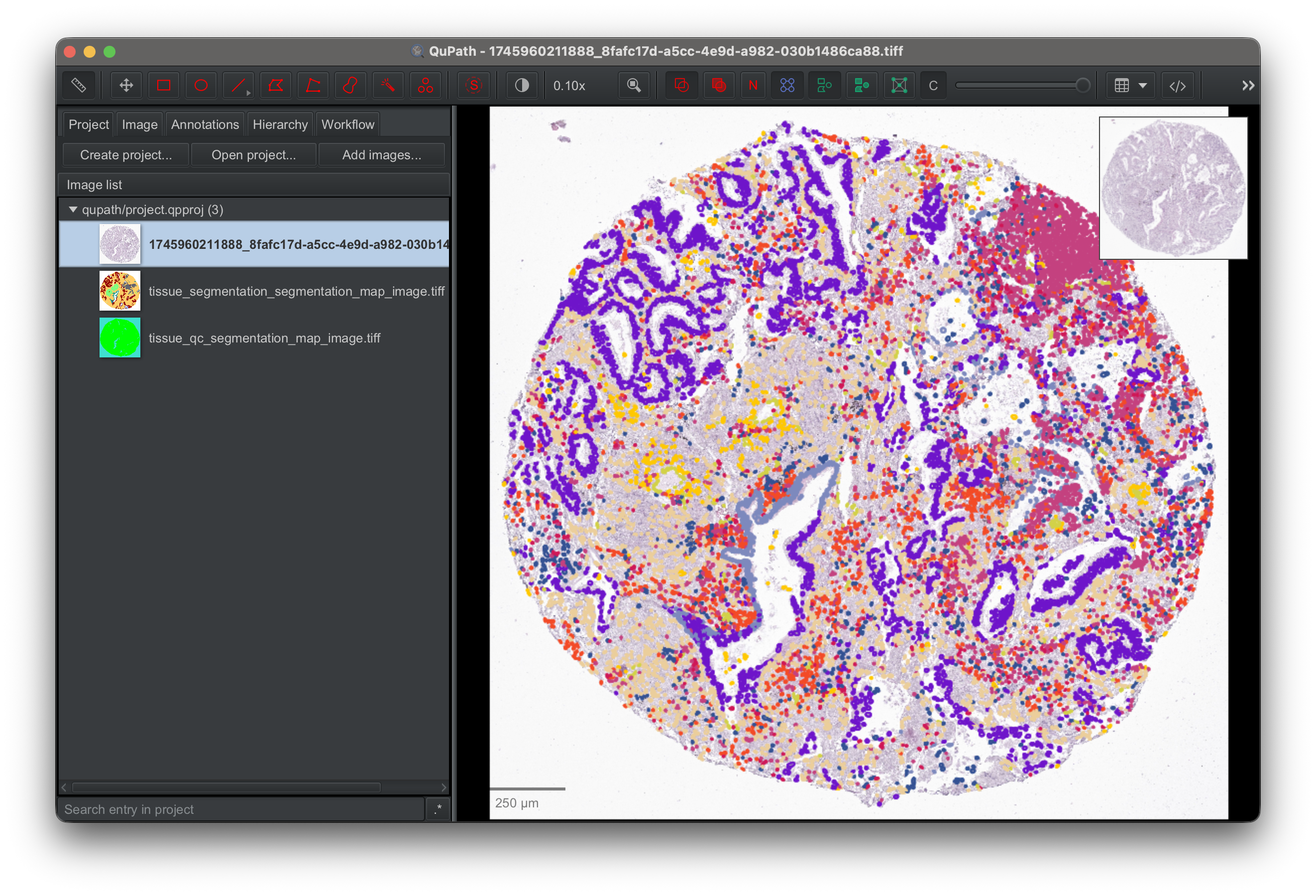
Congratulations — you have signed up, installed Launchpad, run your first analysis, and opened the results in QuPath.
Invite your team
If you are your organization’s Administrator, you can invite colleagues onto the Aignostics Platform so they can run analyses too.
💡 Not an administrator? Skip this section — ask whoever set up your organization’s account to invite you.
Open the members page. Log in to the Aignostics Console, select Admin in the sidebar, then open Members.
Add a colleague and choose their role. At the bottom of the Members page, enter their email address and assign a role:
Member — can run applications and manage their own runs.
Admin — everything a member can do, plus inviting and managing other users.
⚠️ The email address must use your organization’s own domain — the same domain as yours.
Send the invitation. Click Send. Your colleague receives a signup email from
support@aignostics.comand completes the same signup steps you did — accepting the invitation, setting a password, and configuring two-factor authentication.
Return to the Members page any time to review your organization’s users and their roles.
Troubleshooting
How do I find Terminal or PowerShell?
macOS: Press Cmd + Space to open Spotlight search, type Terminal, and press Enter.
Windows: Click the Start menu, type PowerShell, and press Enter.
Both are normal apps that come with your computer. You can keep them in your dock or taskbar if you use Launchpad often.
The install command failed
First, make sure you copied the whole command, including everything from the start of the line to the end. Paste it again and press Enter.
If uvx aignostics launchpad did not work right after installing, close that terminal window, open a new one, and try uvx aignostics launchpad again. The install command is only fully active in a freshly opened window.
If it still fails, copy the error message and email it to support@aignostics.com.
The status indicator at the bottom of the window is red
The colored indicator in the bottom bar of Launchpad shows whether everything is working. When it is red, Launchpad cannot reach the Aignostics Platform, and the NEXT button may be disabled so you cannot submit a run.
Try these steps:
Check that your computer is connected to the internet.
Make sure you are logged in. If you aren’t, open the menu (☰) and log in again.
Wait a minute and check whether the indicator turns green on its own.
If it stays red, email support@aignostics.com.
How do I close Launchpad?
Open the menu (☰) in the top-right corner and click Quit Launcher. You can leave the terminal window open or close it — it is not needed once Launchpad is closed.
How do I restart Launchpad?
Open a terminal and paste the launch command again:
uvx aignostics launchpad
I can't log in, or my six-digit code is rejected
The six-digit code from your authenticator app changes every 30 seconds. If yours was rejected, wait for the app to show a new code and enter that one promptly.
Make sure your phone’s clock is set to update automatically — if it is wrong by even a minute, the codes will not match.
If you have forgotten your password, use the “Forgot password” link on the login page. If you still can’t get in, email support@aignostics.com.
Still stuck? Email support@aignostics.com and describe what you were doing and what you saw.